
Fixed price or auction
Sell at a set price, or run an auction for a single item.
- An auction of 1, 3, 5, 7 or 10 days
- An opening bid, and an optional reserve price
- Listings with variations use fixed price, as eBay requires
Choose eBay in the listing builder and you get eBay's own version: auction or fixed price, Best Offer, the item specifics eBay asks for, and ads. The Design Studio then lays out the description buyers read.
No copying between tabs, and no uploading the same photos twice.
Choose where to publish. One listing can go to several stores at once, and eBay gets its own tailored version.
Start from a product we are sourcing for you, or from stock you already hold with us. Listing from your own stock uses no sourcing credit.
Choose, reorder and edit the photos, and pick the main one.
The title, the description, the category and eBay's item specifics.
Colours, sizes and other options, each with its own price, and how many units each store may sell.
A summary of anything still missing, then publish. Your work saves as you go, and a half-finished listing waits for you in Listing Drafts.
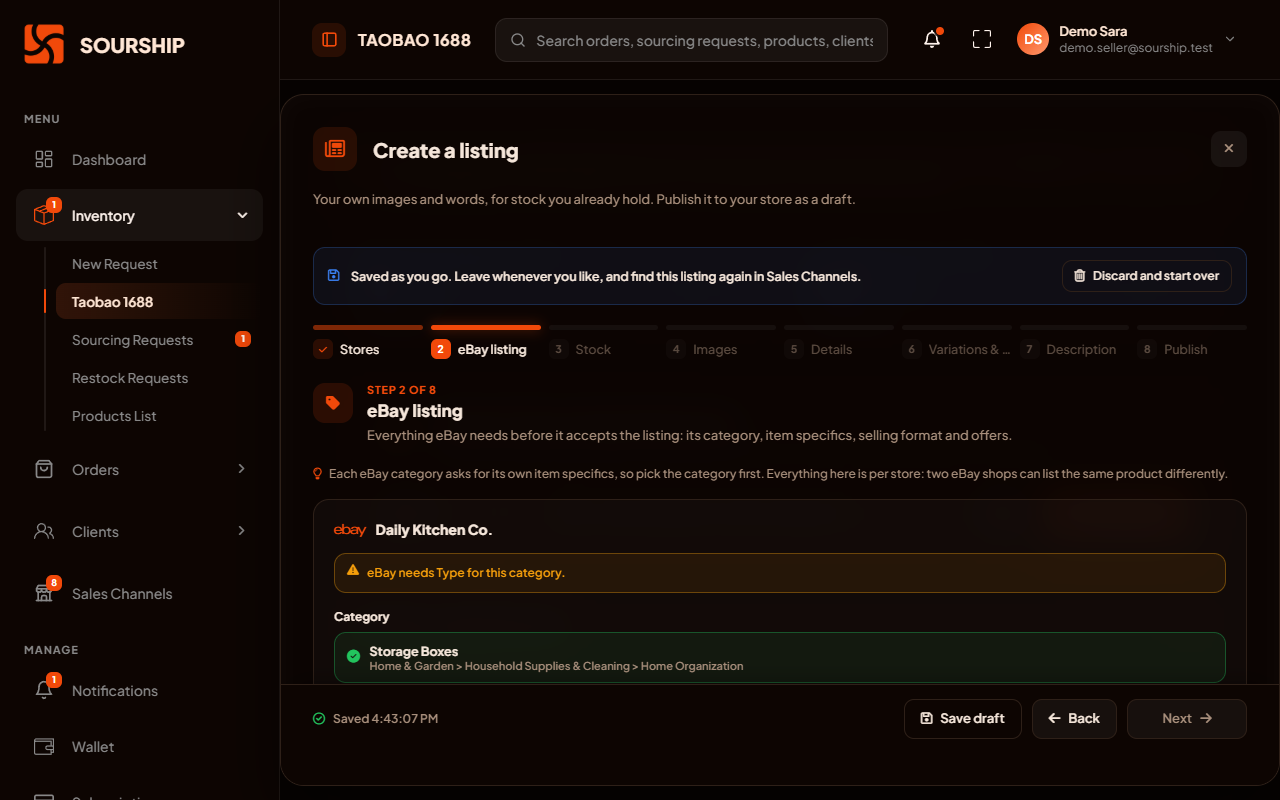
A listing goes on sale once units are allocated to it, so you never sell what is not there yet.
The ways eBay lets you sell an item, set on the same screen as the listing itself.
Sell at a set price, or run an auction for a single item.
Turn on Best Offer and let your rules answer. Accepted offers arrive in Sourship as ordinary orders.
Advertise the listing from the same screen. Sourship checks your eligibility first, and the ad starts as soon as the listing is live.
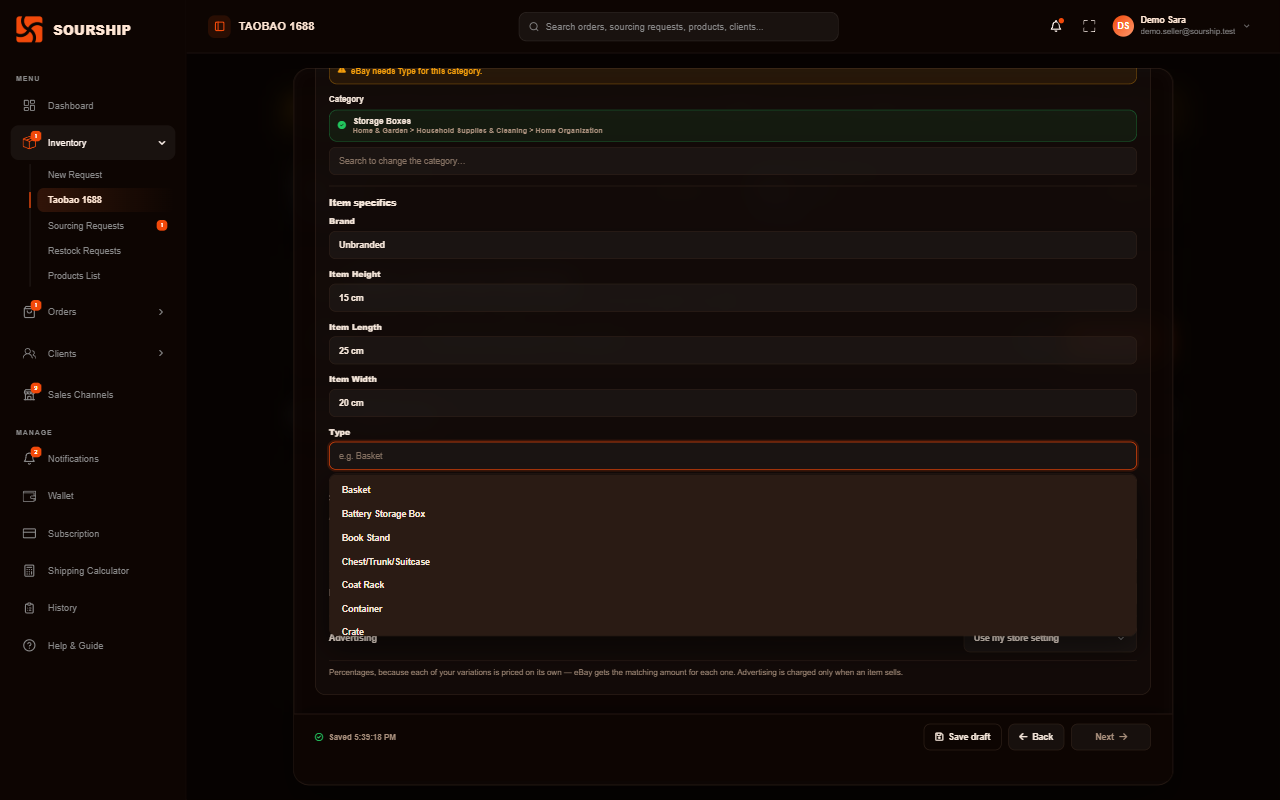
The required details come straight from eBay's own category rules.
Search eBay's categories, and Sourship shows exactly which item specifics that category requires: usually two to six, such as Brand, Colour, Size or Department.
Where eBay only accepts its own values, you pick from eBay's list instead of typing.
Store-wide defaults, such as your usual Brand, are filled in for you.
Several colours or sizes become one listing, with a price and a stock level for each option, instead of several listings competing with each other.
It uses your eBay shipping, payment and return policies, your item condition and your ship-from location.
A branded description in minutes, with no HTML and no designer.
Pick one of six designs, each shown with your own product photos, name and brand, so choosing one is seeing your real listing.
Every heading and paragraph is edited in place, and any picture is replaced with a click.
Add, remove and reorder sections from the panel beside the canvas, with undo and redo up to 100 steps.
The canvas is the real description, not an approximation of it.
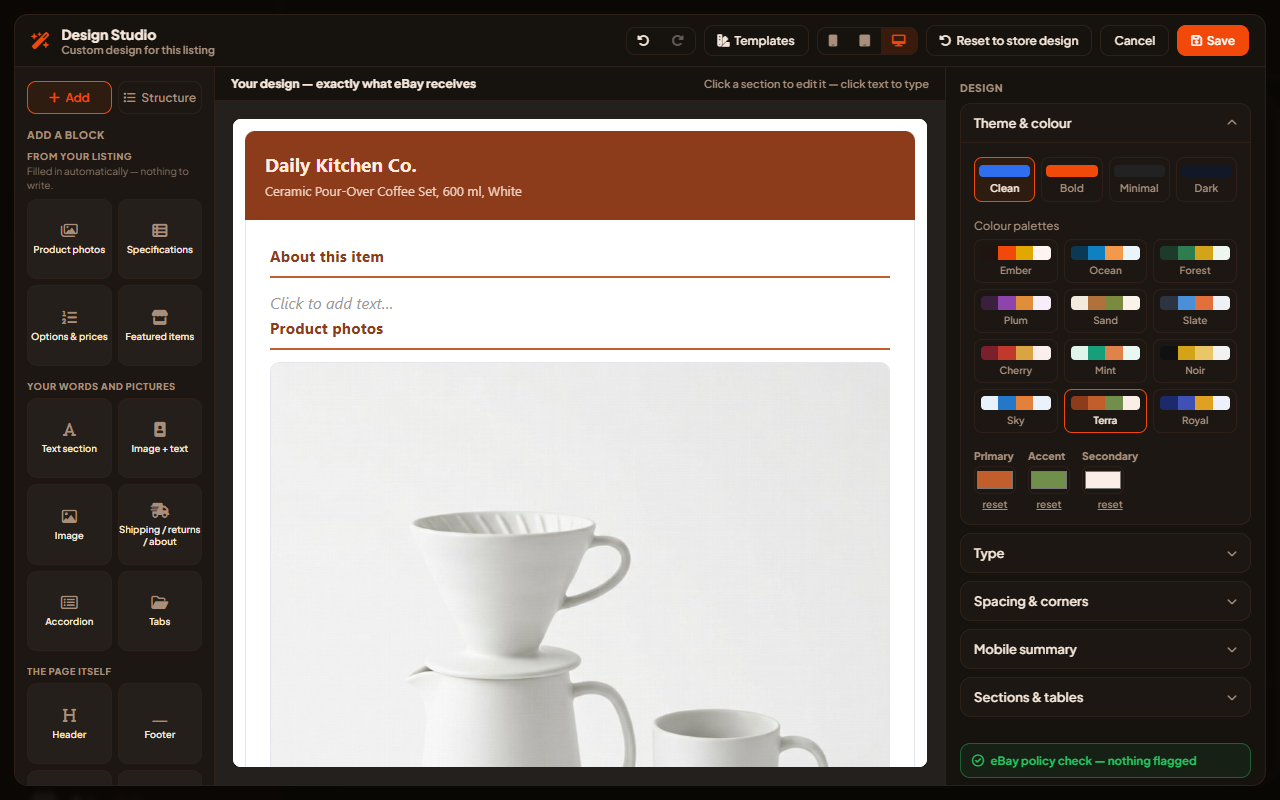
Save a design as your store's design, and every new eBay listing for that store uses it automatically.
Designs, colours and fonts that are made to go together.
Each one previewed with your own product.
Ember, Ocean, Forest, Plum, Sand, Slate, Cherry, Mint, Noir, Sky, Terra and Royal. One click changes every colour of the design.
Seven pairings, such as Playfair with Lato or Montserrat with Roboto, or one font throughout.
Airy or compact, shaped header and footer edges, and the spacing, alignment and background colour of each section.
Everything a good description needs, from your header to a row of your other listings.
The details that keep a description working, and within eBay's policies.
Every new listing for that store uses it automatically.
Buttons and cross-sell cards never point off the platform, as eBay's rules require.
Images are served from Sourship's own storage, so they do not break the way pictures hosted elsewhere often do.
It shows your live listings automatically, and never links to one that has ended.
What sellers ask before they build their first eBay listing with us.
No. eBay only allows auctions for single items, so a listing with colours or sizes uses fixed price.
Once you publish it and units are allocated to it. You never sell stock that is not there yet.
No. Only a product you ask us to source uses sourcing credits. Listing stock you already hold with us costs none.
It arrives in Sourship as an ordinary order, and we pack and ship it like any other.
Not at the moment. The Design Studio is for eBay listings; WooCommerce and Shopify listings use their own description format.
Your eBay shipping, payment and return policies, your item condition and your ship-from location, so they need to be set up on your eBay account first.
Apply for an account, connect your eBay store, and build your first listing in one flow.
Sourship is an independent service. It is not operated, endorsed, certified or sponsored by any marketplace. The term "Etsy" is a trademark of Etsy, Inc. This application uses the Etsy API but is not endorsed or certified by Etsy. Shopify, WooCommerce and eBay are trademarks of their respective owners and are used here only to say which stores Sourship can connect to.